Get started
Dashboard & workspaces
Organise files and projects, invite teammates and manage your workspace.
The dashboard is where you land after signing in. It shows your recent files, your folders and everything shared with you, and it is where you manage your workspace, members and plan.
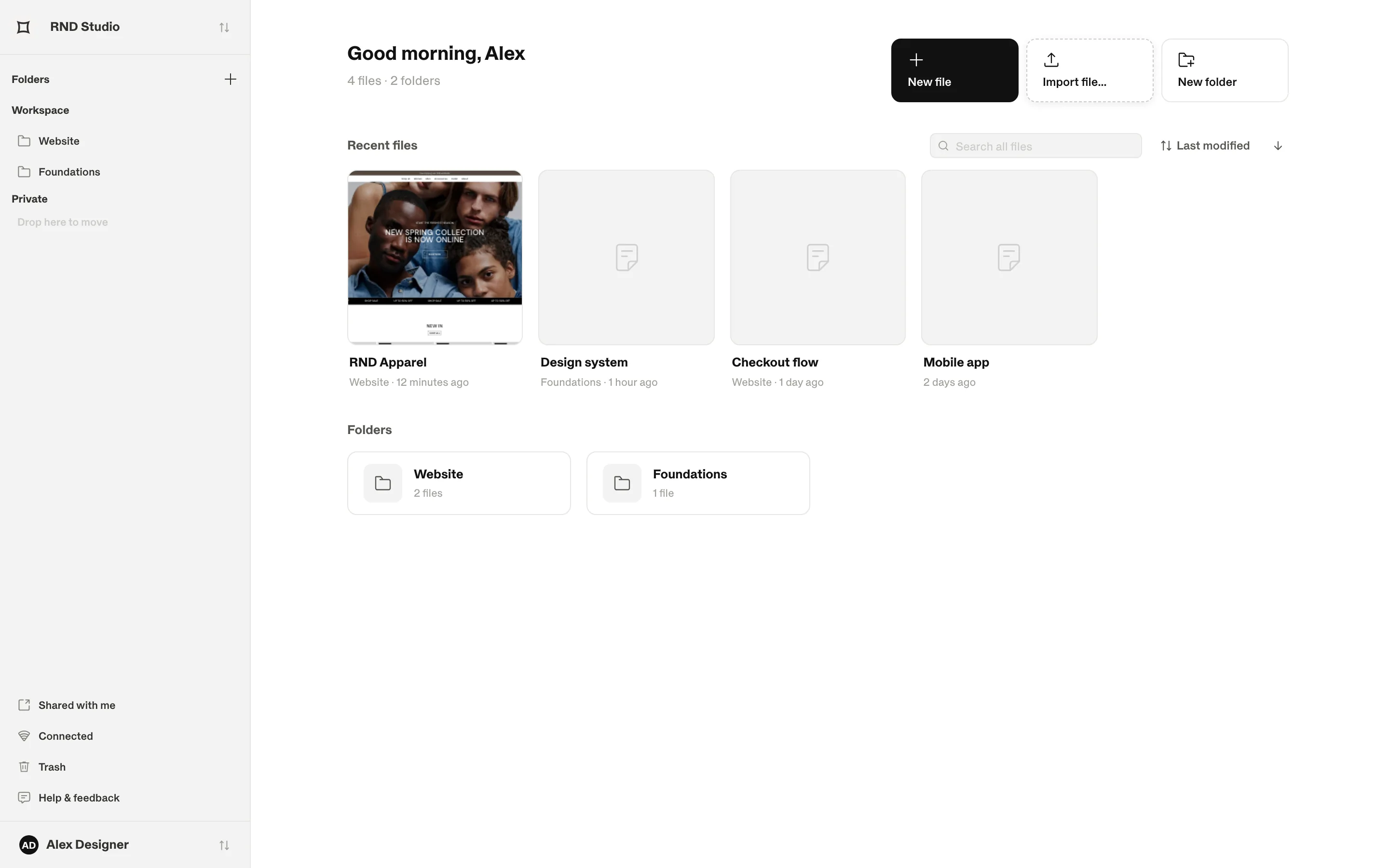
The sidebar
| Item | What it does |
|---|---|
| Workspace switcher | Switch between workspaces or create a New workspace. |
| Folders | Folders are grouped as Workspace (shared with everyone) or Private. Drag a folder between the groups to change who can see it. |
| Shared with me | Files and projects other people invited you to, from this and other workspaces. |
| Connected | Projects shared between this workspace and another company (Plus and Pro). |
| Trash | Deleted files. They are permanently deleted after 30 days. |
| Help & feedback | Send a question, a bug or an idea to the Shippp team. |
Working with files
Create or import a file
- New file creates an empty file and opens it in the editor.
- Import file… opens a .comet file — the format Shippp uses for full file backups, including assets.
- New folder creates a folder in the current workspace.
Find a file
Use Search all files in the toolbar, and sort by Last modified, Date created or Name. Inside a folder, the search only looks in that folder.
File actions
Right-click a file card, or use its … button:
| Action | Result |
|---|---|
| Open | Opens the file in the editor. |
| Duplicate | Creates a full copy in the same place. |
| Save as… | Downloads the file as .comet, with its assets — a portable backup. |
| Move to | Moves the file into another folder. Shippp tells you if people will gain or lose access. |
| Upload thumbnail… | Replaces the automatic thumbnail with your own image. Reset to automatic thumbnail undoes it. |
| Delete | Moves the file to Trash. |
Trash
Deleted files stay in Trash for 30 days. Restore brings a file back with its original sharing; Delete forever removes it immediately. Emptying the trash cannot be undone.
Workspace settings
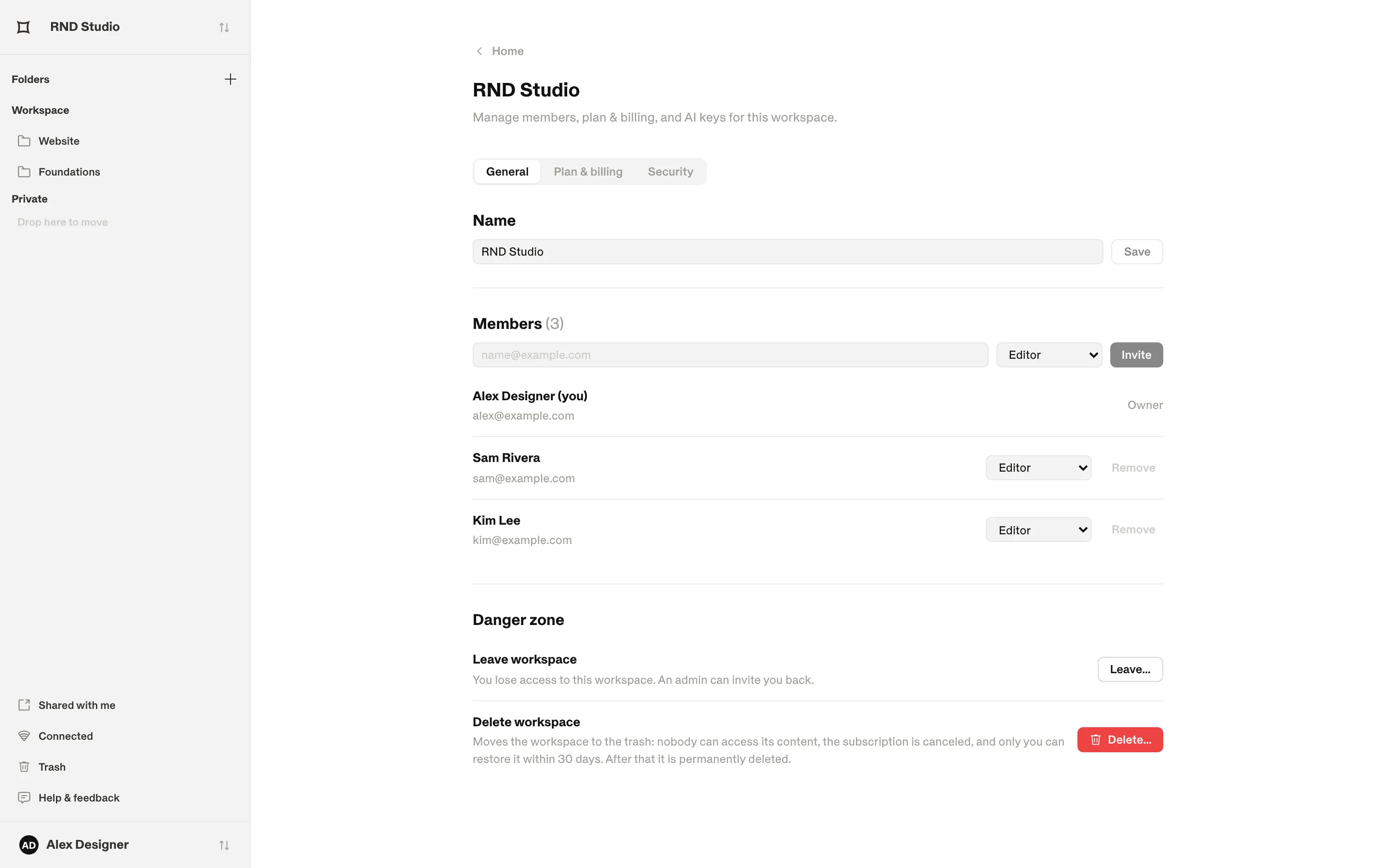
Open the workspace menu and choose the workspace settings. There are three tabs:
| Tab | What you manage |
|---|---|
| General | The workspace name, Members (invite by email as Editor, Admin or Viewer), archived members and the danger zone (leave or delete the workspace). |
| Plan & billing | Your plan, editor seats, free viewers, and your code-export and MCP usage. |
| Security | Admins only: Domain restriction, Only admins can invite, and Turn off MCP for external people. |
Note
Your account
Open the user menu at the bottom of the sidebar to reach your account. Here you edit your Profile, manage your connected AI clients under MCP, and use Privacy & data to export your data or delete your account.
Using your own fonts