Ship
Preview
See your screens running as a real page before you hand them off.
Live preview runs your screens as a real web page, with the same renderer that produces the exported code. What you see in preview is what developers get.
Open the preview
Click the play button in the top right of the editor (Open live preview). The preview opens in a new browser tab.
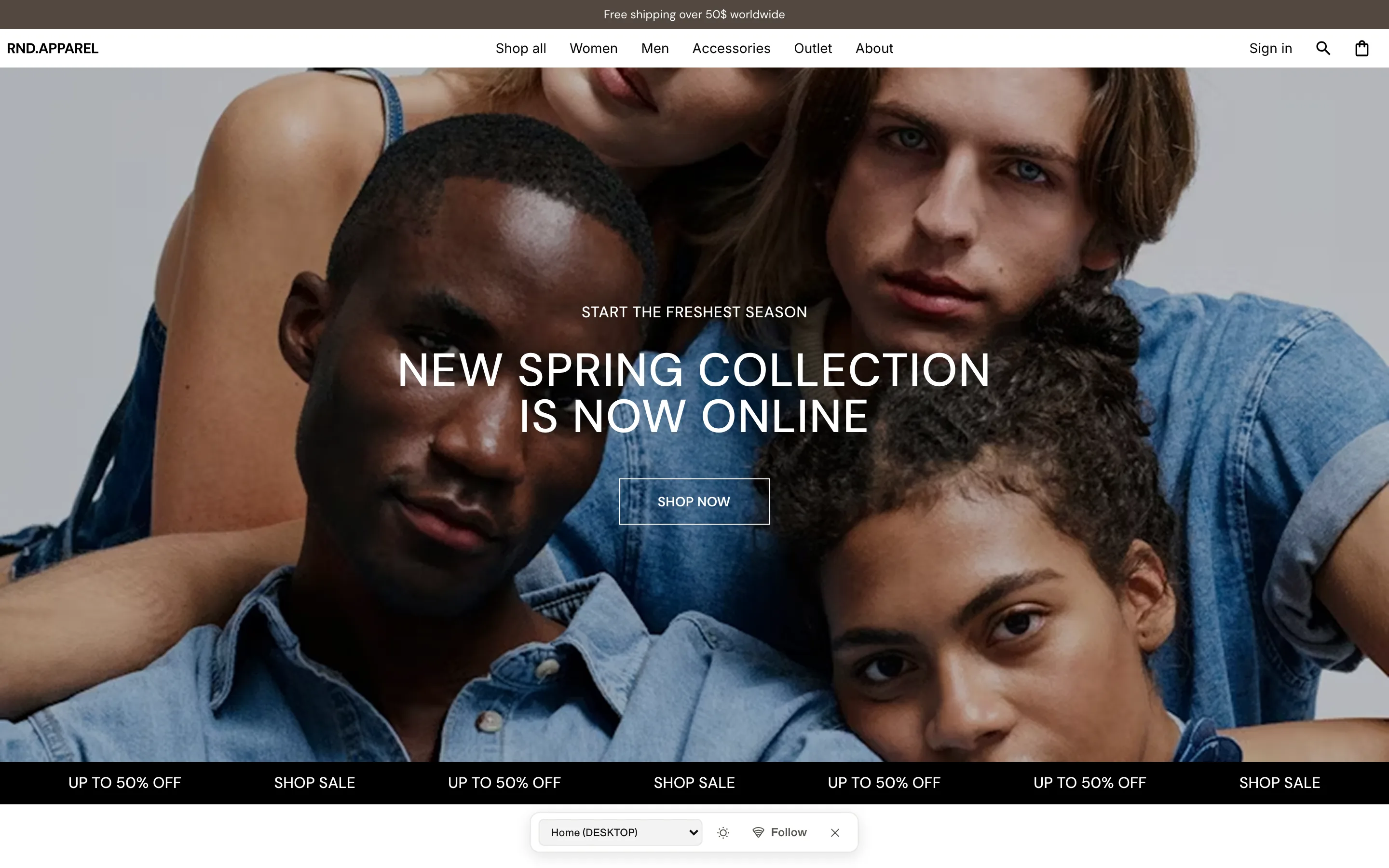
Preview controls
| Control | What it does |
|---|---|
| Follow / Following | The preview follows your selection in the editor in real time. Click a screen to pin it. |
| Select a screen… | Jump to any screen in the file. |
| Switch to dark / Switch to light | Check your design in both color modes. |
| Hide controls | Remove the controls for a clean view or a screen recording. |
Test responsive behaviour
- Resize the browser window — the layout switches at your breakpoints, exactly as in production.
- Use your browser's device toolbar to check specific phone and tablet sizes.
- Put the editor and the preview side by side and turn on Follow for instant feedback while you design.
Tip
If something looks different in preview than on the canvas, it is almost always sizing: a layer set to Fixed where it should Fill or Hug. See Smart layout.
Share a preview
To show the preview to people outside your workspace, publish a preview link from Share → Preview link. You can protect it with a password and let it expire.