Ship
Export code
Download components, tokens, a design-system package or a full Next.js project.
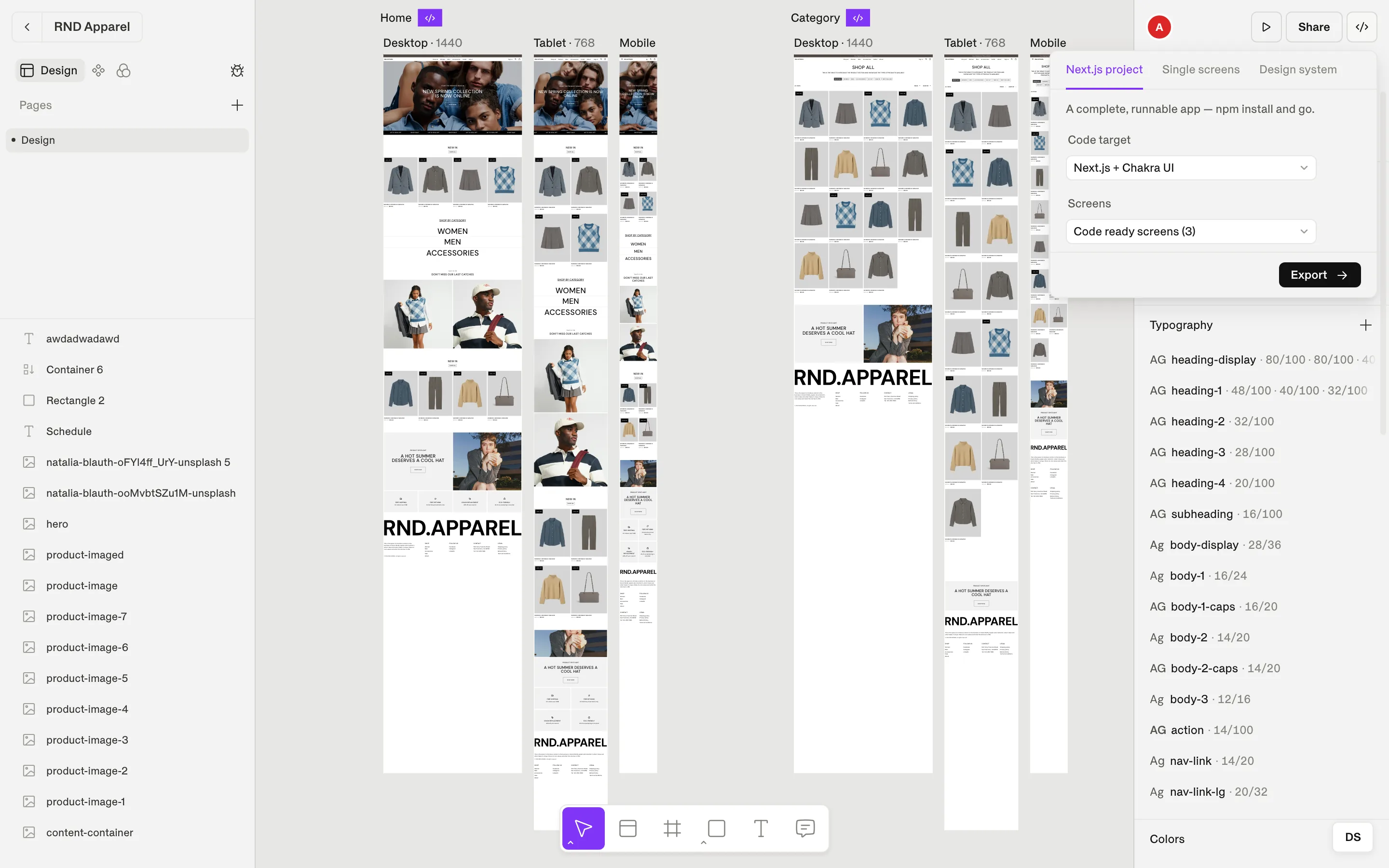
Export turns your file into code you can hand to developers or run yourself. You choose what to export, which code stack to target and which screens to include — Shippp packages it as a .zip.
Export in four steps
Open Export code
Click the </> button in the top right, choose File menu → Export Code…, or press ⌘ E.Choose an output format
Next.js project, Single screens or Design system (see below).Choose a code target
Next.js + Chakra UI, Next.js + Base UI or Next.js + Radix.Pick screens and download
Choose the screens, then Download .zip on the Export ready screen.
Output formats
| Format | You get | Best for |
|---|---|---|
| Next.js project | A complete, runnable app — npm install and go — with a generated Storybook for every component. | Prototypes, new products, reviewing components in Storybook |
| Single screens | One self-contained .tsx component per screen. | Adding screens to an existing codebase |
| Design system | Tokens, components and runtime in one package. | Handing a design system to a development team |
Code targets
| Target | Stack |
|---|---|
| Next.js + Chakra UI | React components styled with Chakra UI v3 recipes and a Chakra theme. |
| Next.js + Base UI | Tailwind CSS with Base UI primitives. |
| Next.js + Radix | Tailwind CSS with Radix primitives. |
Note
Choose screens
| Option | Includes |
|---|---|
| Code ready screens | Screens in sections marked Select for dev. The default. |
| Selected screens | What is selected on the canvas right now. |
| All screens | Every screen in the file. |
| Custom | A checklist to pick exactly the screens you want. |
Run an exported project
Unzip the Next.js project and run it with Node.js installed:
Terminal
cd my-file-nextjs
npm install
npm run dev
Run npm run storybook to browse every component, variant and state in isolation — see Storybook.
Open http://localhost:3000 to see your design running. This documentation site started exactly this way: its theme and components are a Shippp design-system export.
What is inside a design-system package
Package structure (Chakra target)
theme/
  index.ts              ← createSystem(…) with your tokens and styles
  tokens/               ← primitives: fonts, breakpoints, …
  semantic-tokens/      ← colors, spacing, … (responsive values included)
  text-styles.ts        ← H1, H2, P1, …
  slot-recipes/         ← one recipe per component, variants included
  shippp-receipt.json   ← which file and version the code came from
components/
  button/               ← typed React components, one folder each
  …
The receipt records the file, version and generator settings. The same input always produces the same code, so developers can regenerate safely and review real differences.
Other ways to get code
- MCP — let Claude, Cursor or VS Code generate code and sync it into a repository. Learn about MCP.
- Export DS (File menu) — a .ds.json of tokens and components to import into another Shippp file. This is a design file, not code.
- Save as… — a .comet backup of the whole file.
Limits
Free includes 5 code exports per calendar month; Plus and Pro are unlimited. Downloading the same export again does not count twice, and failed exports are never counted. If you hit the limit you'll see Export limit reached. See Plans & usage.