Connect a client
Step-by-step setup for every supported client.
Shippp MCP
Let Claude, Cursor, VS Code and other AI clients read and edit your designs.
Design in Shippp, ship from your chat. The Shippp MCP connector lets Claude, Cursor, VS Code and other AI clients read your design system, generate production-ready code and — with your approval — edit designs on the same validated path the Shippp editor uses.
AI tools are only as good as the context they get. Without it, an agent guesses from a screenshot or a prompt, and the result drifts away from your product. With Shippp connected, every AI client works from the same source of truth as your team: your real components, tokens and approved screens.
MCP (Model Context Protocol) is an open standard that lets AI assistants use tools and data from other apps. When you connect Shippp, your AI client gets a set of Shippp tools: it can look at your file the way the editor sees it, instead of guessing from screenshots.
You don't need to write code to use it. You talk to the assistant in plain language, for example:
Prompt
Look at the screen I have selected in Shippp.
Which components does it use, and are any colors not coming from tokens?| Capability | Examples | Access needed |
|---|---|---|
| Inspect | List screens and components, read tokens and text styles, explain a component, read your current selection. | Read |
| Generate | Code for one component, the token theme, the full design-system package or a runnable Next.js project. | Read |
| Edit | Create screens from your components, rename layers, apply tokens, fix spacing — in atomic, revertible change sets. | Read and write |
| Repository | Bind a codebase once, then keep generated code in sync with the design. | A coding client that can write files |
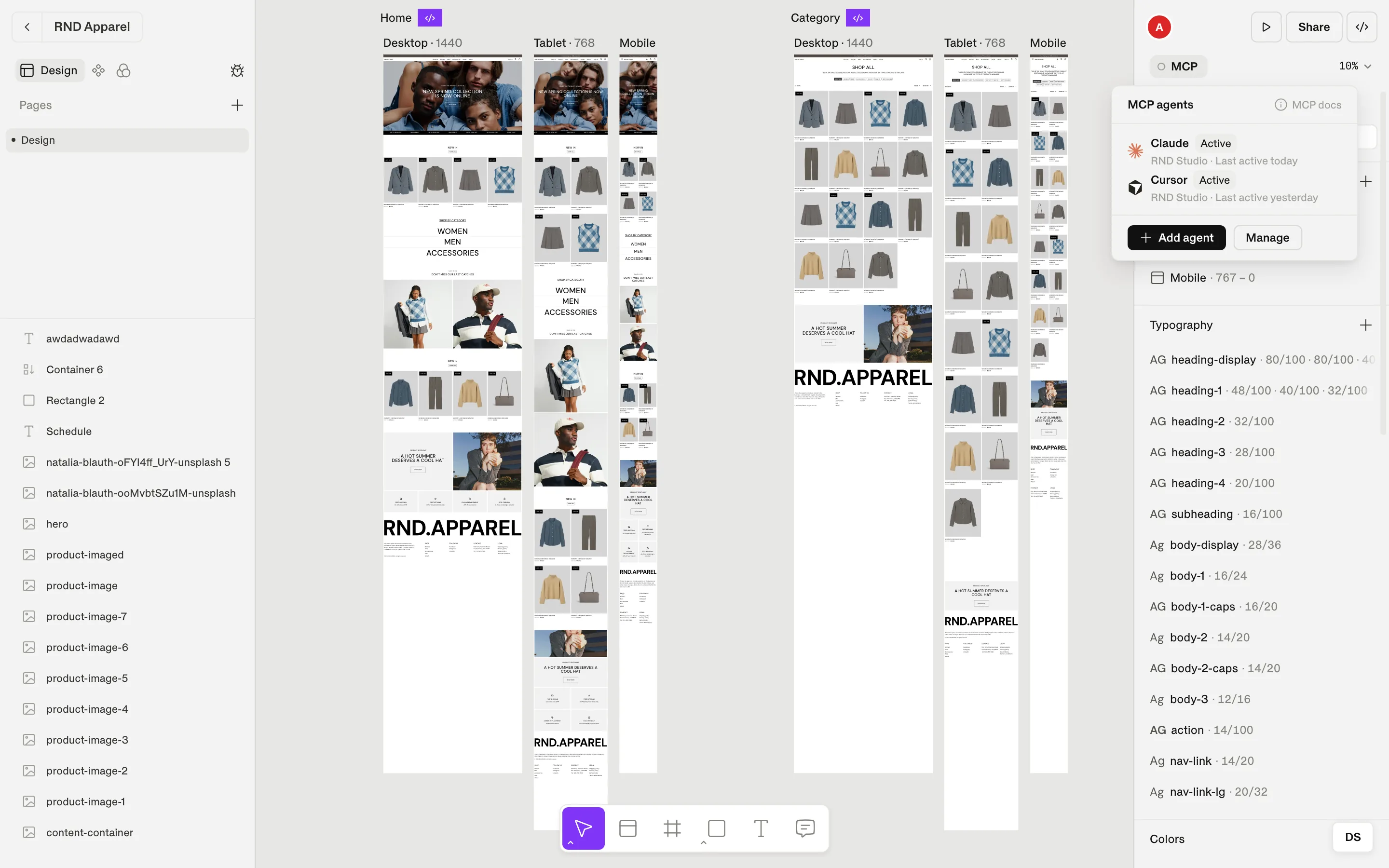
Shippp is a remote MCP server over streamable HTTP with OAuth sign-in. There is nothing to install and no API key to copy — you add one URL to your client and sign in:
Shippp MCP URL
https://app.shippp.ai/api/mcp/mcpYou add the URL to your AI client once.
The client opens Shippp in your browser. You sign in, pick a workspace and choose Read or Read and write.
From then on, the client uses Shippp tools when you ask it to. Access refreshes automatically.
Access is granted by you, in Shippp, for one workspace — a client can never widen its own access.
Every edit goes through the same validation and collaboration path as your own edits, and can be reverted.
High-impact actions — like deleting many layers or binding a repository — need your explicit approval in the chat.
You can change access or disconnect a client at any time from your account page.
Claude (the app and Claude Code), Cursor, VS Code, Codex, Replit and any other MCP client that supports remote HTTP servers.
Which client should a designer use?