Shippp MCP
Access & permissions
Read vs. Read and write, workspaces, approvals and how to disconnect a client.
Access is granted by you, in Shippp, at connect time: you sign in with OAuth, pick one workspace and choose Read or Read and write. Shippp enforces that choice on every call — a client can never widen its own access.
Access levels
| Read | Read and write | |
|---|---|---|
| List screens, components and versions | Yes | Yes |
| Read tokens, text styles and component contracts | Yes | Yes |
| Read your live selection | Yes | Yes |
| Generate code and previews | Yes | Yes |
| Plan and apply edits (change sets) | — | Yes |
| Upload images | — | Yes |
| Revert its own changes | — | Yes |
Tip
One workspace per connection
A connection reaches exactly one workspace — the one you picked on the Authorize access screen. Inside it, the client can work with the files you can access. By default it works on the file you have open in the editor, so you never need to paste file IDs.
Approvals for high-impact actions
Everyday edits don't need an extra Shippp approval — your client's own tool approval applies. A few actions are different. The client must show you a plan and get your explicit "yes" in the chat first:
- deleting many layers or restructuring a screen at once,
- changing a component's API in a way that breaks existing instances,
- binding a repository for the first time, or re-binding it,
- anything that would touch generated files a developer has edited by hand.
Every change is revertible
Agent edits are grouped into change sets. Each change set is applied atomically — all of it or nothing — and is attributed to the client that made it. The client can revert its own change sets later without touching work anyone else did since. If someone changed the same property in the meantime, the revert stops and reports a conflict instead of overwriting.
Manage connections
Open your account page → MCP. Each connected client shows its access, workspace and when it last connected.
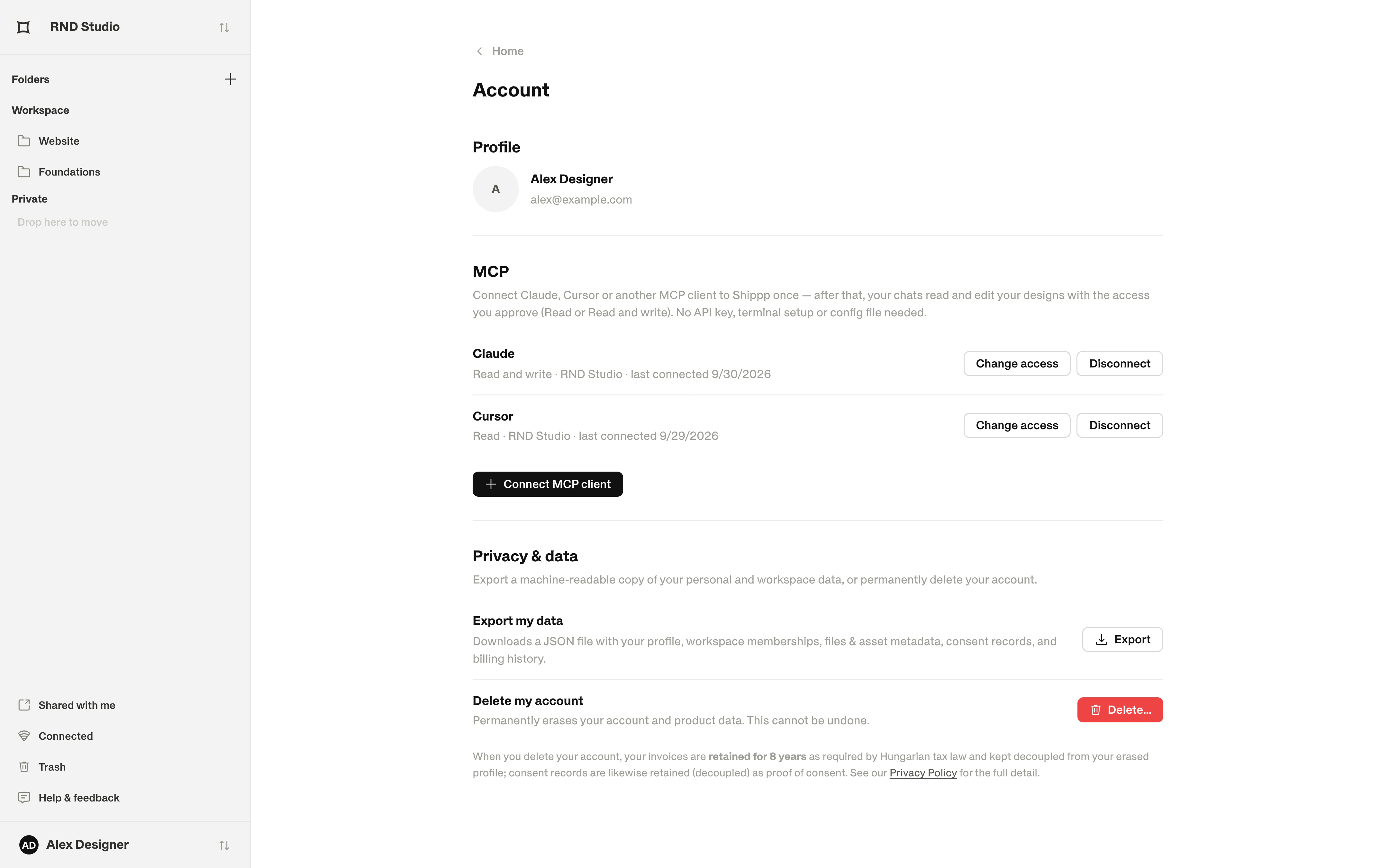
| Action | What happens |
|---|---|
| Change access → Read only | Write access is revoked — effective immediately. |
| Change access → Read and write | The client asks you to approve the upgrade at its next sign-in. |
| Change access → Change workspace | You choose the new workspace at the client's next sign-in. |
| Disconnect | The client loses access. Confirm with Confirm disconnect. |
| Reconnect | Shown when a client needs to sign in again. |
In the editor
The MCP button in the right panel shows your clients for this file — Active, Working or Inactive — and Collaborators' agents working in the same file. + Add agent connects a new client; Manage opens your account page.
For workspace admins
Restrict external people
In Workspace settings → Security, turn on Turn off MCP for external people to block MCP for anyone outside your workspace.Keep viewers read-only
Viewers have no MCP access. Only people with an editor seat can connect clients.