Collaborate
Sharing & permissions
Share files, invite editors and viewers, and publish view-only links.
Click Share in the top right of the editor. The share panel has two tabs: Project, for people who work in the file, and Preview link, for a public, view-only page of your screens.
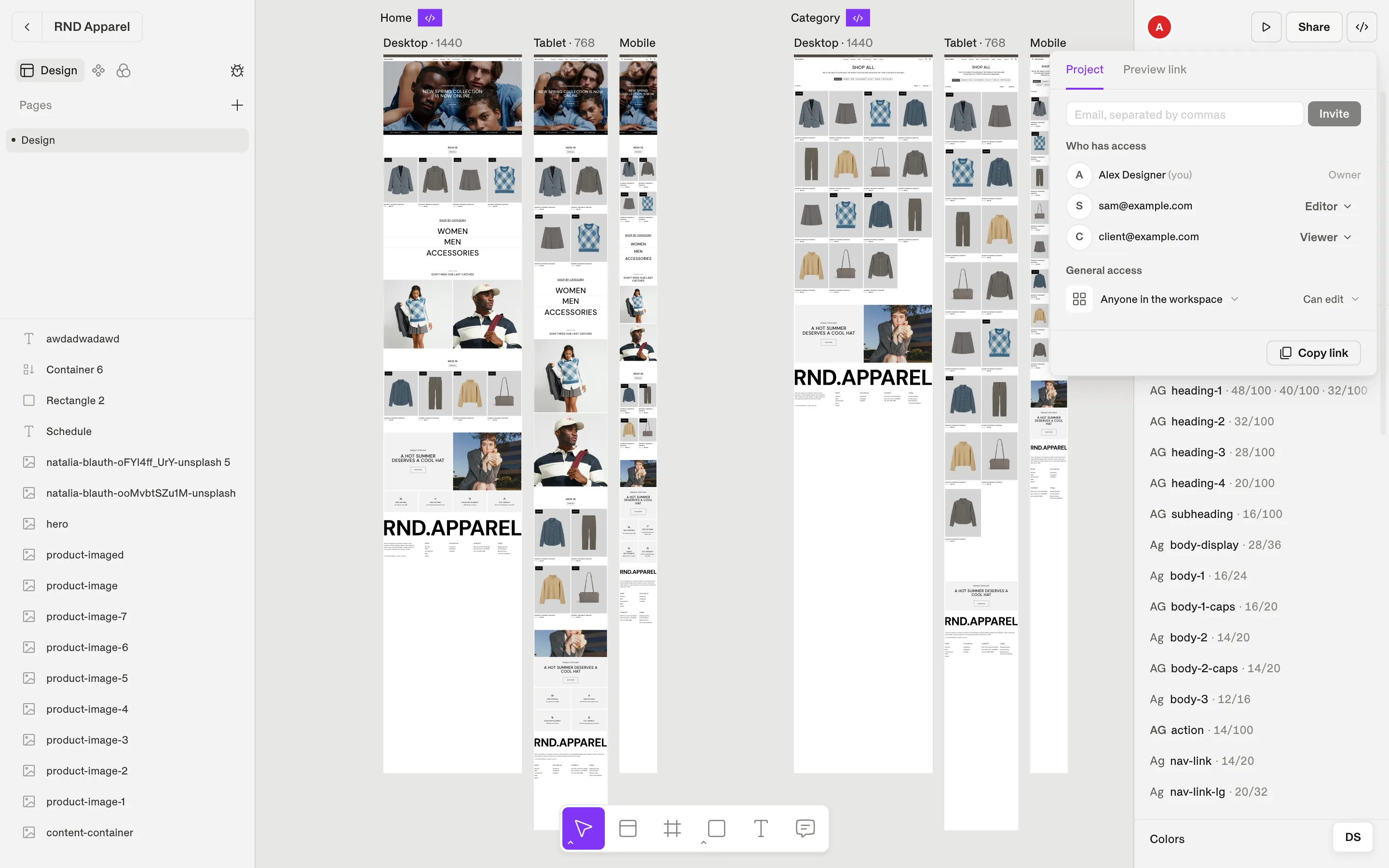
Invite people
Enter email addresses
Type one or more addresses in Email, separated by commas.Choose a role
Can edit — edit, comment and share. Can view — view and comment.Send the invitation
Click Invite. If an invitation needs an admin's approval first, it waits under Waiting for approval until an admin approves it.
Note
Who has access
The Who has access list shows the owner, everyone invited directly, and People from this folder (access inherited from the folder the file is in).
General access
| Setting | Who can open the file |
|---|---|
| Only people invited | The owner and the people in the list. |
| Anyone in the workspace | Every workspace member — as Can edit or Can view. |
Moving a file or folder can change who has access. Shippp tells you before the move who would gain or lose access.
Publish a preview link
A preview link lets anyone see your screens as a real web page — no Shippp account needed. Use it for stakeholder reviews, user tests or client approvals.
Open the Preview link tab
In Share, switch to Preview link and turn on Publish preview link.Choose who can open it
Anyone with the link, or Anyone with the link and password.Set an expiry and the screens
Link expires: In a day, In a week, In 30 days or Never. Choose which screens are included.Copy the link
Click Copy link. Regenerating the link stops the current one from working and creates a new one.
Request edit access
If you only have view access, a Request edit button appears in the editor. The owner receives your request and can upgrade you.
Connected workspaces
Agencies and partner studios can share a project between two companies' workspaces with Connect workspace. Connected projects appear under Connected in the dashboard sidebar. Plus includes up to 10 connected projects, Pro unlimited.
Roles at a glance
| Owner / Admin | Editor | Viewer | |
|---|---|---|---|
| Edit designs | Yes | Yes | No |
| Comment | Yes | Yes | Yes |
| Share and invite | Yes | Yes | No |
| Export code and use MCP | Yes | Yes | No |
| Needs a paid seat | Yes (on Plus / Pro) | Yes (on Plus / Pro) | No — free |
| Manage workspace and billing | Admins | No | No |
- Admins can restrict invitations to a company domain and limit invites to admins in Security.
- See Plans & usage for seats and limits.