Design
The editor
A tour of the canvas, the toolbar, the layers panel and the inspector.
The editor has four areas: the left panel for pages and layers, the canvas in the middle, the toolbar at the bottom of the canvas, and the right panel with the inspector, sharing and export.
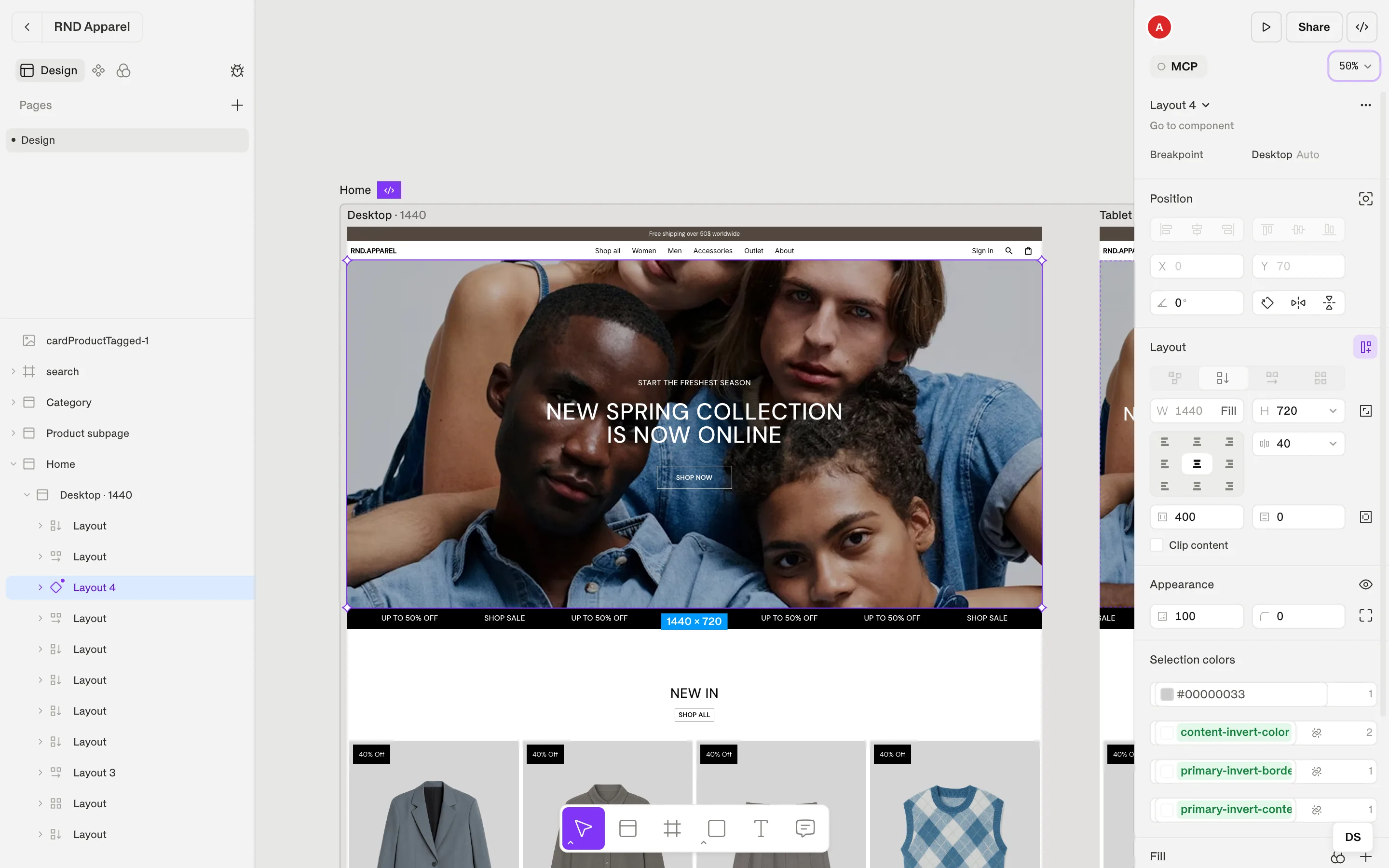
Left panel
Click the file name at the top to open the File menu; double-click it to rename the file. Next to it, a dot and a short status tell you whether your work is saved and whether you are collaborating live.
| Tab | Contains |
|---|---|
| Design | Pages (with an Add page button) and the layers tree of the current page. Drag rows to reorder; use the eye and lock icons to hide or lock layers. |
| Components | Your component pages, organised in categories (New Category, Uncategorized). |
| Foundations | Your design system — tokens, text styles, effects and breakpoints — shown as tables instead of the canvas. |
File menu
- New File, Open File… (⌘ O), Duplicate File…, Move to
- Save as… (⌘ ⇧ S) downloads a .comet backup of the file
- Save Version… and Version History
- Import DS / Export DS — move tokens (and optionally components) between files as .ds.json
- Export Code…, File Settings…, Keyboard Shortcuts… and Send Feedback…
Toolbar
The toolbar floats at the bottom of the canvas.
| Tool | Shortcut | Use it to |
|---|---|---|
| Pointer | V | Select, move and resize layers. |
| Hand | H | Pan the canvas. |
| Screen | S | Add a screen (a top-level frame at a breakpoint). |
| Container | F | Draw a box that holds other layers — the base of every smart layout. |
| Rectangle / Ellipse | R O | Draw shapes. |
| Text | T | Add text. |
| Comment | C | Drop a comment pin on the canvas. |
| Eyedropper | I | Pick a color from the canvas and apply it to the selection. |
Canvas navigation
| Action | How |
|---|---|
| Pan | Scroll, hold Space and drag, or drag with the middle mouse button |
| Zoom | Hold ⌘ / Ctrl and scroll, or pinch on a trackpad |
| Zoom to fit | ⇧ 1 |
| Zoom to selection | ⇧ 2 |
| Zoom to 100% | ⇧ 0 |
| Rulers | ⇧ R |
| Outlines | ⌘ ⇧ O |
| Hide UI | ⌘ . |
The zoom menu in the right panel offers the same options plus a percentage field.
Right panel
At the top you see who else is in the file (click an avatar to follow them), the Open live preview button, Share and Export code. Below is the MCP button, which shows AI clients working in the file, and the zoom control.
The inspector
The inspector changes with your selection. With nothing selected it shows a summary of your design system and the page background. With a layer selected you get these sections:
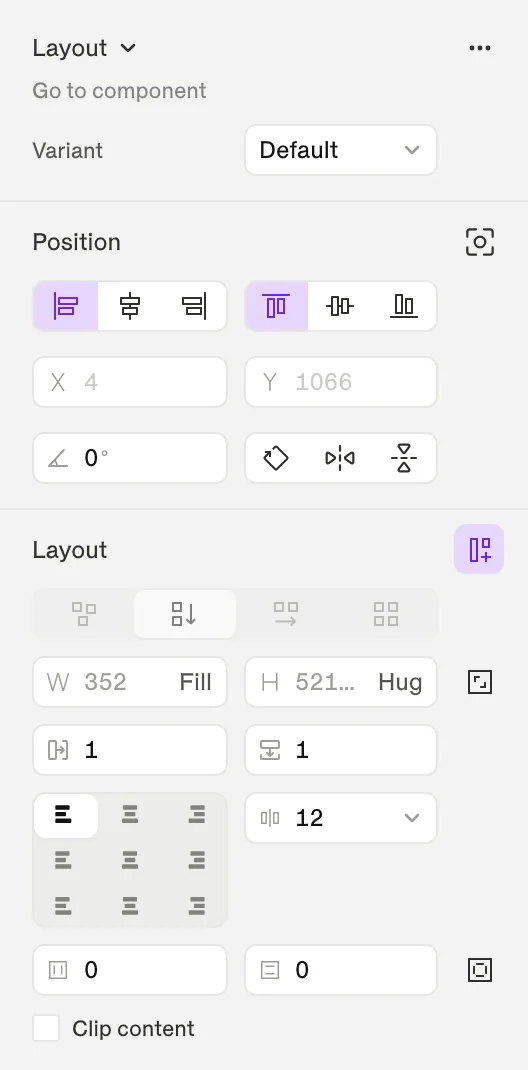
| Section | What you set |
|---|---|
| Position | Alignment, X/Y, constraints (Left, Right, Left + Right, Center, Scale…), rotation and flip. Ignore smart layout takes a layer out of its parent's flow. |
| Layout | Free, Vertical, Horizontal or Grid; wrap; width and height (Fill, Hug, Fixed); alignment; gap; padding; Clip content. |
| Appearance | Visibility, opacity and corner radius — each can use a token. |
| Selection colors | Every color in the selection; Replace color swaps one everywhere. |
| Fill | Color, gradient or image fills, from a custom value or your Libraries (tokens). |
| Border | Stroke color, width and style. |
| Typography | Text style, font, size, line height, letter spacing, alignment and More text options. |
| Effects | Drop shadow, inner shadow, layer blur, background blur and effect styles. |
| Instance | Variant pickers, Swap component, Go to main component, Detach instance. |
Tip
Command palette
Press ⌘ K to search pages, components, tokens and actions — for example Save version… or Show keyboard shortcuts. Press ? at any time to see every shortcut, or read the shortcut reference.
Saving and working offline
Shippp saves automatically — there is no save button to remember. The status next to the file name tells you what is happening:
| Status | Meaning |
|---|---|
| Connected — collaborating live | Everything is saved and synced with your collaborators. |
| Offline — changes are saved locally | You can keep working. Changes sync when you are back online. |
| Reconnecting to collaboration server… | A short network hiccup. Keep working. |
| Access removed — live editing stopped | Your access to the file changed. Ask the owner to share it again. |