Reference
Feedback & feature requests
Report a bug or ask for a feature from inside Shippp, with screenshots or a screen recording.
You can send a bug report or a feature request to the Shippp team from inside the product. The form asks the questions that help us understand the problem, and you can add images or a short screen recording.
Open the feedback form
| Where you are | How to open it |
|---|---|
| Dashboard | Click Help & feedback at the bottom of the sidebar. |
| Editor | Click the bug icon (Send feedback) next to the Design, Components and Foundations tabs. |
| Editor, File menu | Choose Send Feedback… |
Report a bug
Choose Bug report at the top of the form.
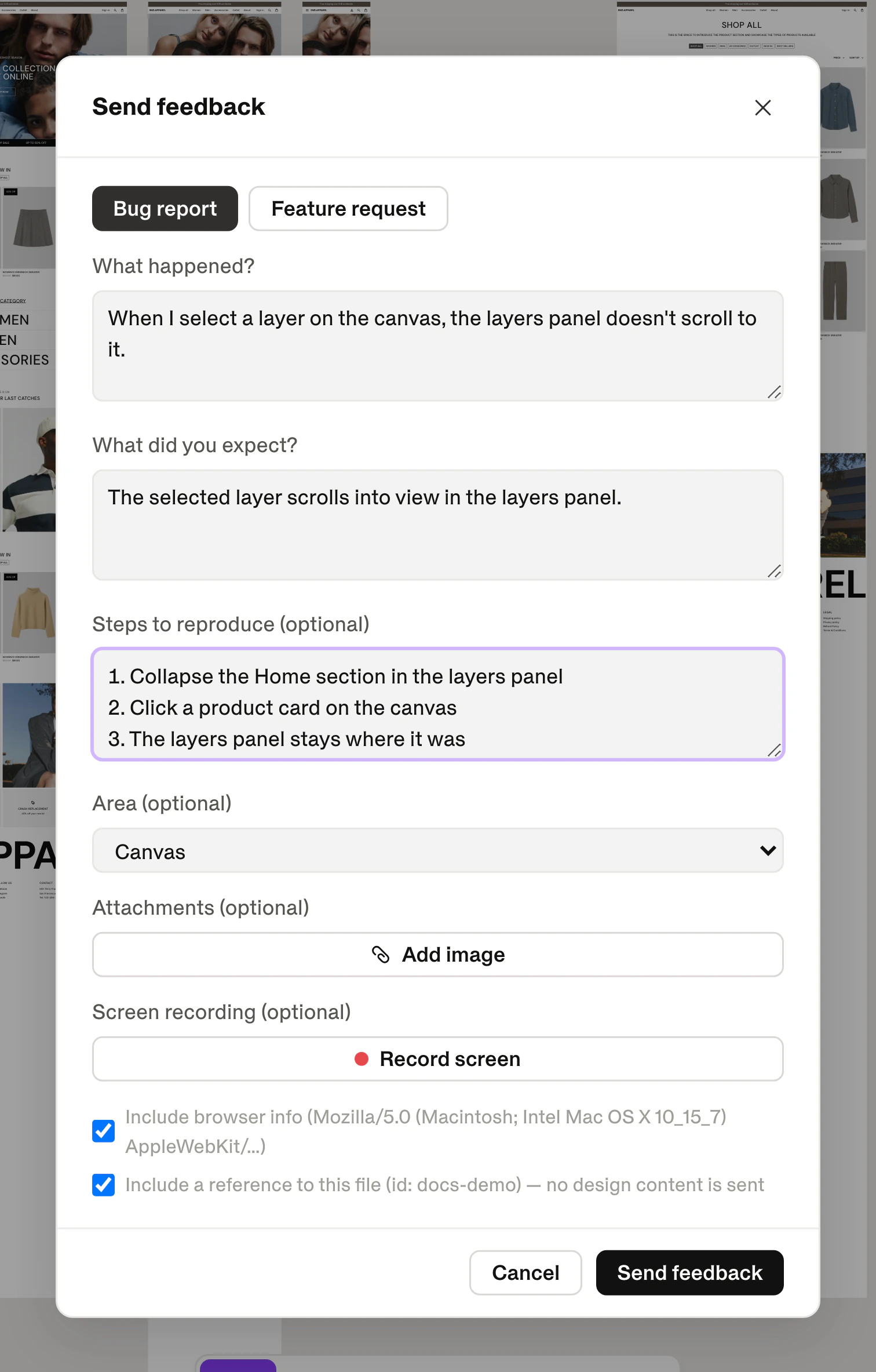
What happened?
Describe what you saw. One or two sentences are enough.What did you expect?
Say what should have happened instead.Steps to reproduce (optional)
List the clicks that lead to the problem. This is the fastest way for us to find it.
Request a feature
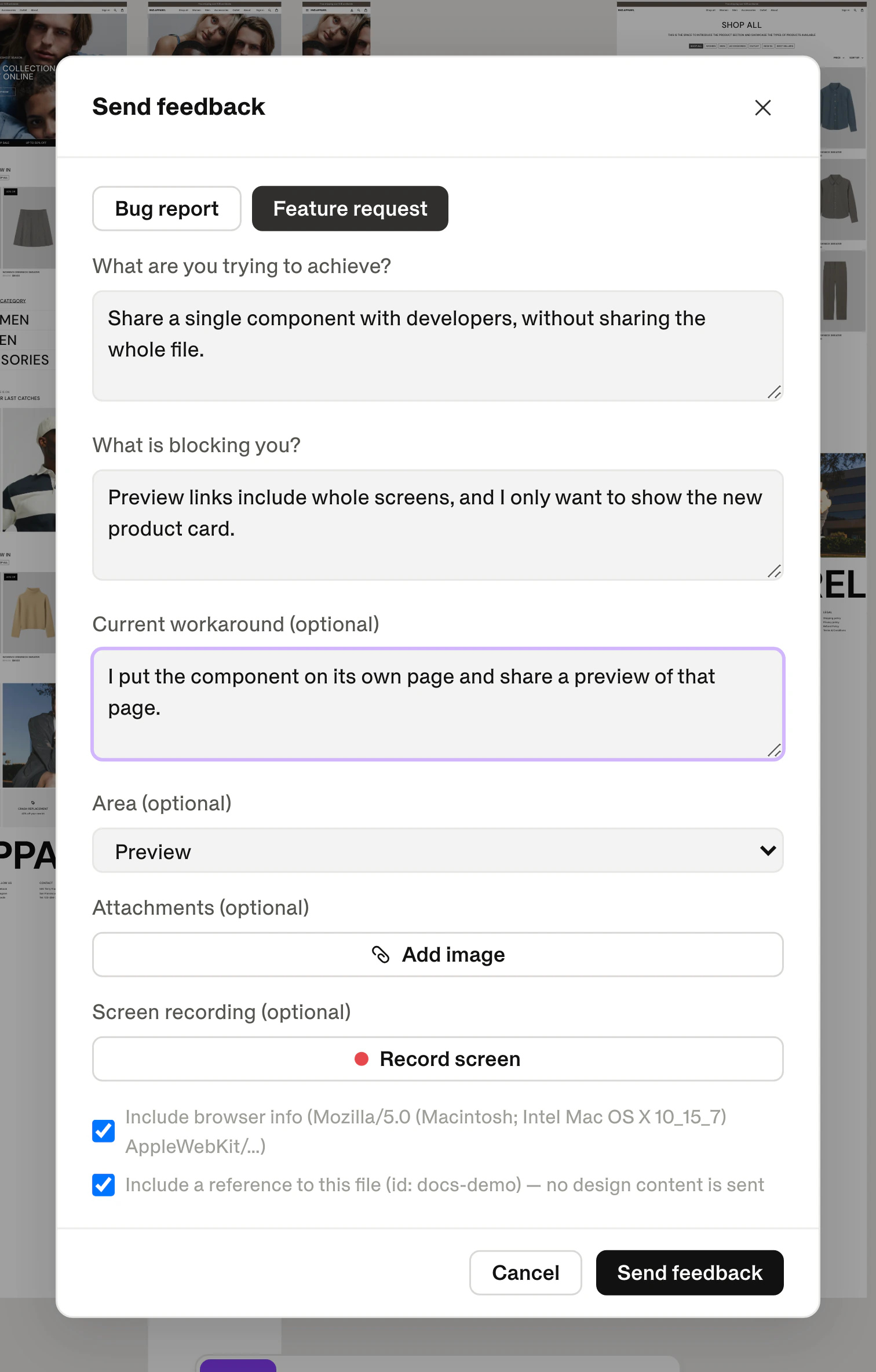
Choose Feature request. Instead of describing a solution, tell us what you are trying to do. It helps us find the best way to support it.
| Field | What to write |
|---|---|
| What are you trying to achieve? | The goal, in your own words. |
| What is blocking you? | What makes it hard or impossible in Shippp today. |
| Current workaround (optional) | How you get it done now, if you do. |
Add context
Area
Pick the part of Shippp the report is about: Dashboard, Canvas, Inspector, Foundations / design system, Preview, Export, Collaboration, MCP / agents, Plans & billing, Account or Other. It helps the team sort reports faster.
Images
Click Add image to attach up to 3 images: PNG, JPEG, WebP or GIF, up to 4 MB each. A screenshot with the problem circled often says more than a paragraph.
Screen recording
For problems that are easier to show than to describe, click Record screen.
Read what will be recorded
Shippp explains what the recording includes before it starts: the tab or window you pick, and a short technical log of your Shippp interactions. Nothing is recorded until you click Start recording.Pick a tab or window
Your browser asks which tab or window to share.Show the problem
The form closes while you record, and a small Recording… bar shows the elapsed time. Recordings can be up to 5 minutes long.Stop recording
Click Stop recording. The form opens again with the recording attached. You can discard it and record again.
Keep sensitive data off screen
Screen recording needs a browser that can record WebM video, such as Chrome, Edge or Firefox on desktop. If yours can't, you can still send the report with images.
Browser info and file reference
- Include browser info adds your browser and operating system, which helps with bugs that only happen in one browser.
- In the editor, Include a reference to this file adds the file's ID so we know where the problem is. No design content is sent.
Both are on by default, and you can turn either off.
Send it
Click Send feedback. You'll see Thanks — your feedback was sent to the Shippp team. If sending fails, your text stays in the form so you can try again.
What makes a report easy to act on
Other ways to reach us
For account or billing questions, or if you can't sign in, write to support@shippp.ai. For quick answers, see the FAQ. Press ? in the editor to see every keyboard shortcut.